Logic Tab
The Logic tab displays and allows you to edit logical rules that specify the survey flow.
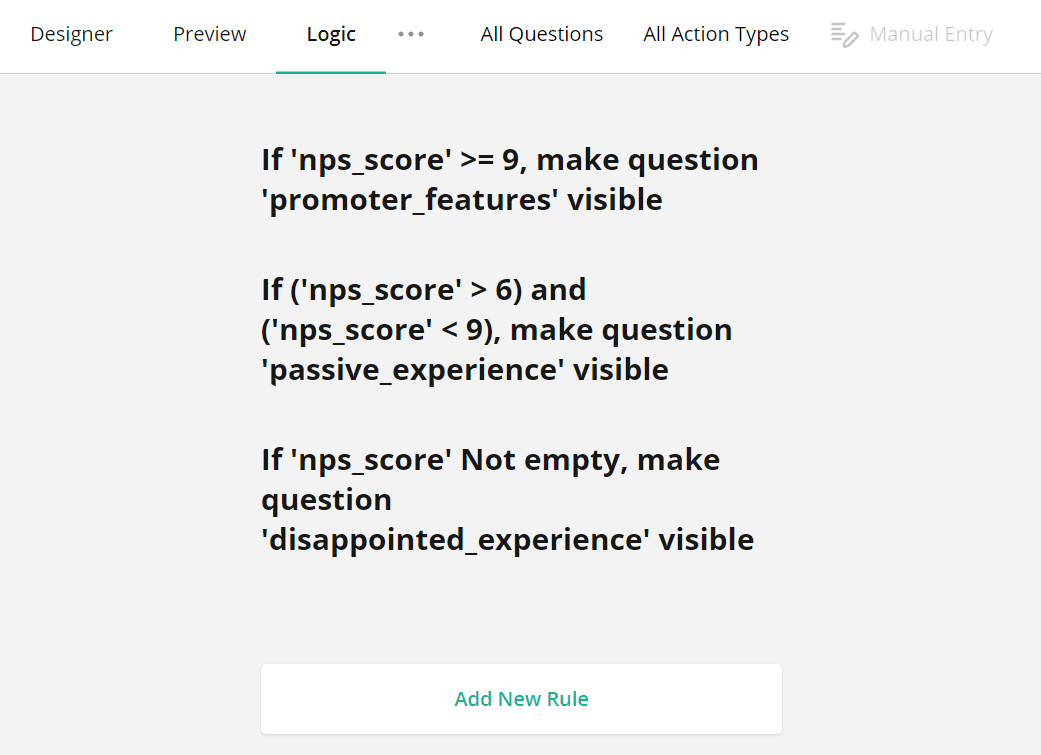
How to: Add a new rule
Click Add New Rule at the bottom of the Logic tab to display editors that allow you to specify conditions and select actions to perform when these conditions are met.
Specify conditions (if-clauses)
Select a question whose answer should be checked and a logical operation from the corresponding drop-down menus. Then, specify the answer that applies the rule. Some logical operations do not need an answer (for example, Empty or Not empty).
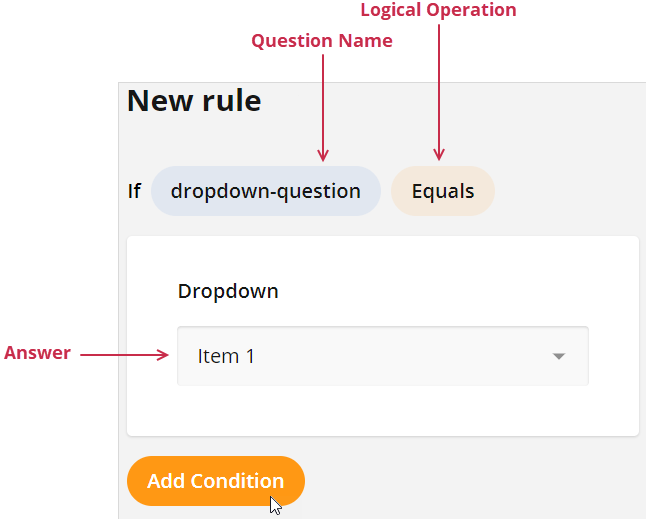
If the rule needs more than one condition, click the Add Condition button. You can use the AND or OR logical operator to combine the new and previous conditions.

Conditions that you specify in the UI are converted to logical expressions. If you prefer to enter the expressions directly, click the Manual Entry button on the Toolbar.

Specify the action (then-clause)
Select one of the following actions from the drop-down menu:
Show (hide) page
Makes the selected page visible. If you want to hide the page, invert the logic of your condition.Enable (disable) page
Makes the selected page editable. If you want to make the page read-only, invert the logic of your condition.Show (hide) question
Makes the selected question visible. If you want to hide the question, invert the logic of your condition.Enable (disable) question
Makes the selected question editable. If you want to make the question read-only, invert the logic of your condition.Make question required
Requires an answer for the selected question.Complete survey
Completes the survey.Set answer
Sets a specified answer to the selected question.Copy answer
Copies the answer from the selected question to a target question.Skip to question
Navigates the survey to the selected question.Run expression
Runs a custom expression on the selected question.Set "Survey Complete" page markup
Specifies custom HTML markup for the Survey Complete page.
How to: Edit a rule
Click a rule to expand it and use UI elements to edit the rule. Click Done to save your changes.
How to: Filter rules
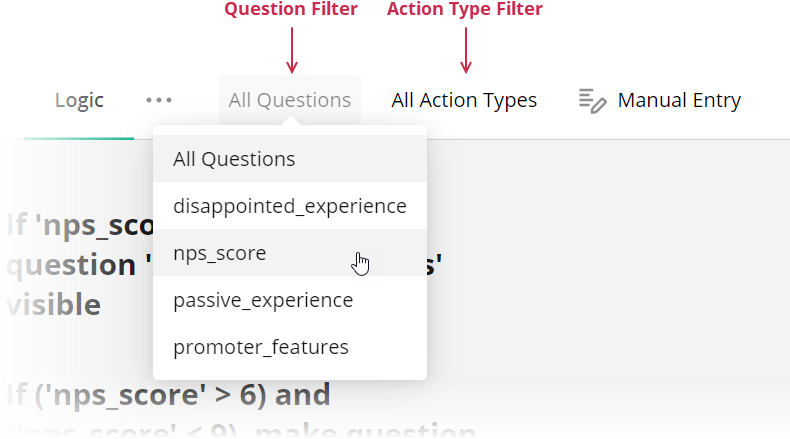
Use the Question Filter to filter rules by a specific question. You can also use the Action Type Filter to view only rules for the selected action type:
Was this article helpful?
That’s Great!
Thank you for your feedback
Sorry! We couldn't be helpful
Thank you for your feedback
Feedback sent
We appreciate your effort and will try to fix the article