Question display logic allows you to dynamically manage the visibility and read-only state of form questions based on predefined conditions. To configure a display logic for a question, follow the steps below:
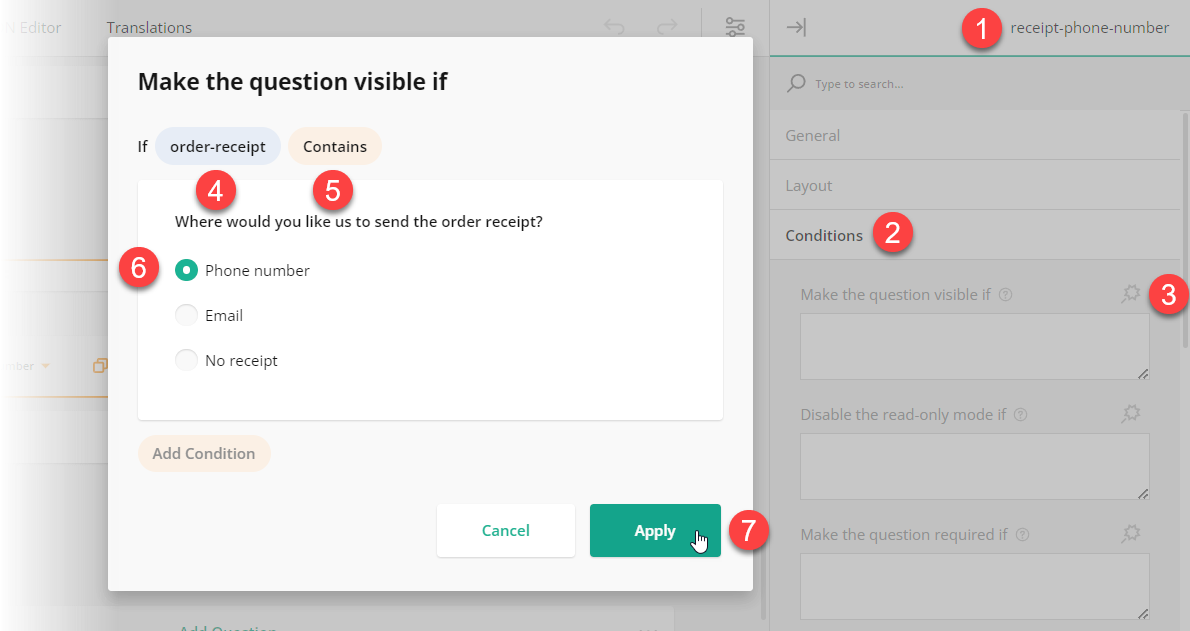
- Select the question or input field for which you want to create a conditional rule.
- Under the Conditions category, locate the Make the question visible if (if you want to conditionally hide the question) or Disable the read-only mode if property (if you want to conditionally restrict question editing).
- Click the Magic wand icon on the right of the property you want to configure. This action opens a popup with a GUI for setting up display logic.
- In the popup, select a trigger element ID.
- Select a condition from the drop-down menu: Empty, Not Empty, Equals, Does not equal, Any of, Greater than, Less than, Greater than or equals to, or Less than or equals to.
- Type in or select the triggering answer.
- Click Apply.
Was this article helpful?
That’s Great!
Thank you for your feedback
Sorry! We couldn't be helpful
Thank you for your feedback
Feedback sent
We appreciate your effort and will try to fix the article