Click the Add Contact button.
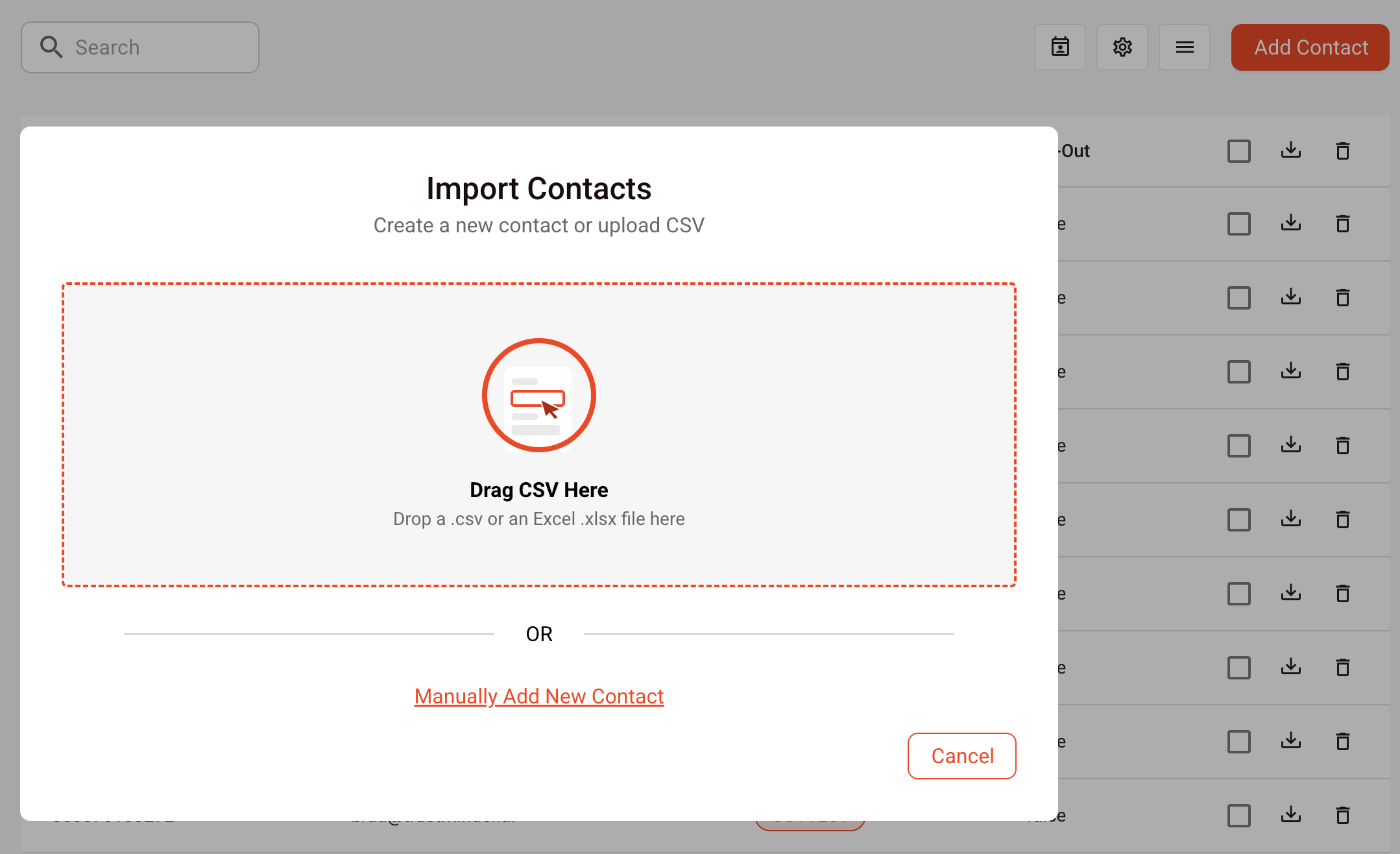
Select or drop a CSV file into the drag and drop zone. (xlsx is supported but csv is preferred)
Depending on how the CSV is setup, you may need to map certain columns to trustMinder contact defaults.
- first - this is the first name of the contact.
- surname - this is the surname of the contact
- email - this is the email of the contact
- phone - this is the mobile number of the contact
If a column in the CSV has 'FirstName' you'll need to map this to 'first'.
Drag 'first' to the 'FirstName' column. A green tick will show it is set.
Repeat for surname, email and phone.
Next, give this group a name. In the example MyGroup is the group name. If there's a column 'group' with existing group names, trustMinder will append the new group name.
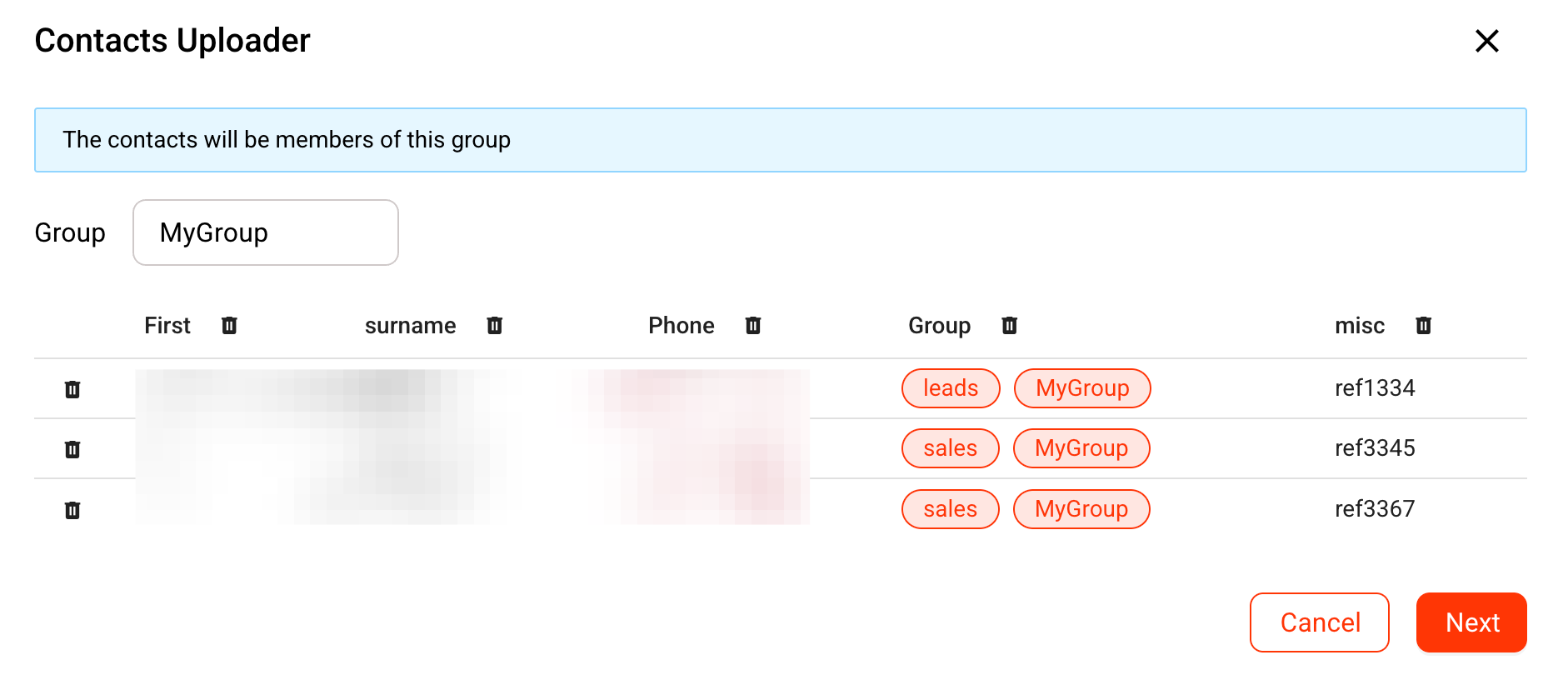
Next, select a country or multiple set of countries to validate the mobile phone numbers and press validate.

If there's any invalid emails or phone numbers you can removed them and remaining valid contacts can be saved to trustMinder.
Was this article helpful?
That’s Great!
Thank you for your feedback
Sorry! We couldn't be helpful
Thank you for your feedback
Feedback sent
We appreciate your effort and will try to fix the article