Accent Color
The accent color is used to highlight key survey elements, such as the survey title, selected choice options, and focused input fields.
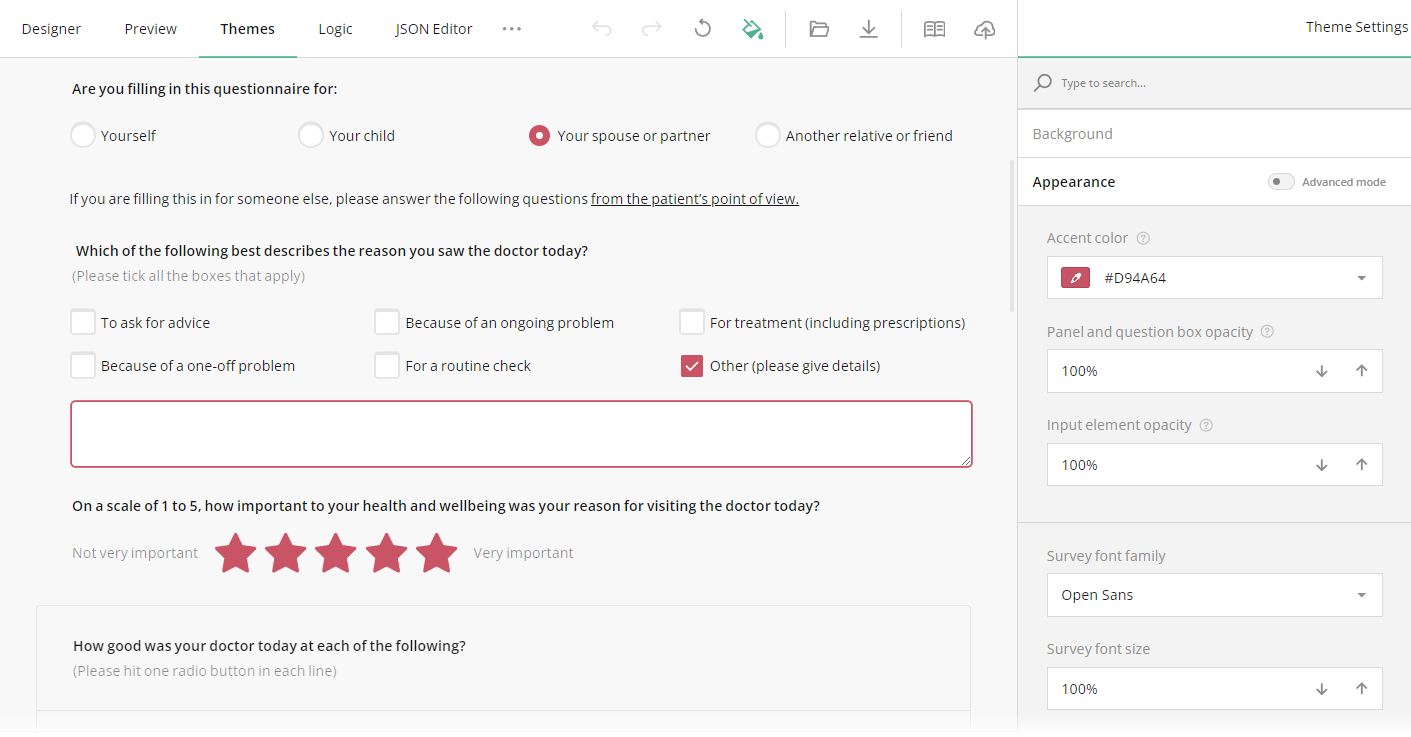
Each predefined theme comes with a unique accent color, but you can easily change it by following these steps:
- Under the Appearance category, locate the Accent color property.
- Select a new accent color from the drop-down menu or use the Color Picker to set the color in RGB, HEX, or HSL. If you know the color code for the color you'd like to use, you can enter it directly into the Accent color input field.
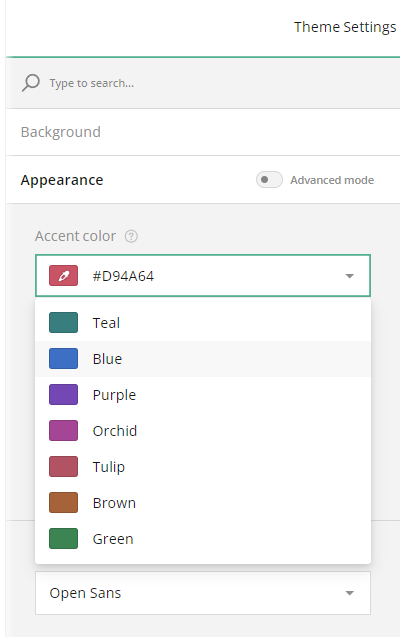
Survey Element Transparency
You can adjust the transparency of panels (sections that group questions) and question boxes (which frame individual questions) relative to the survey background. This setting can help create a cleaner look by blending these elements with the background. To set the transparency, do the following:
- Locate the Panel and question box opacity property.
- Adjust the opacity between 0% and 100% by using the spinner to achieve the desired transparency level.

Similarly, you can customize the transparency of input elements (text boxes, Boolean toggles, the background of checkboxes and radio buttons) using the Input element opacity setting.

Survey Font
To change the font used in your survey, follow these steps:
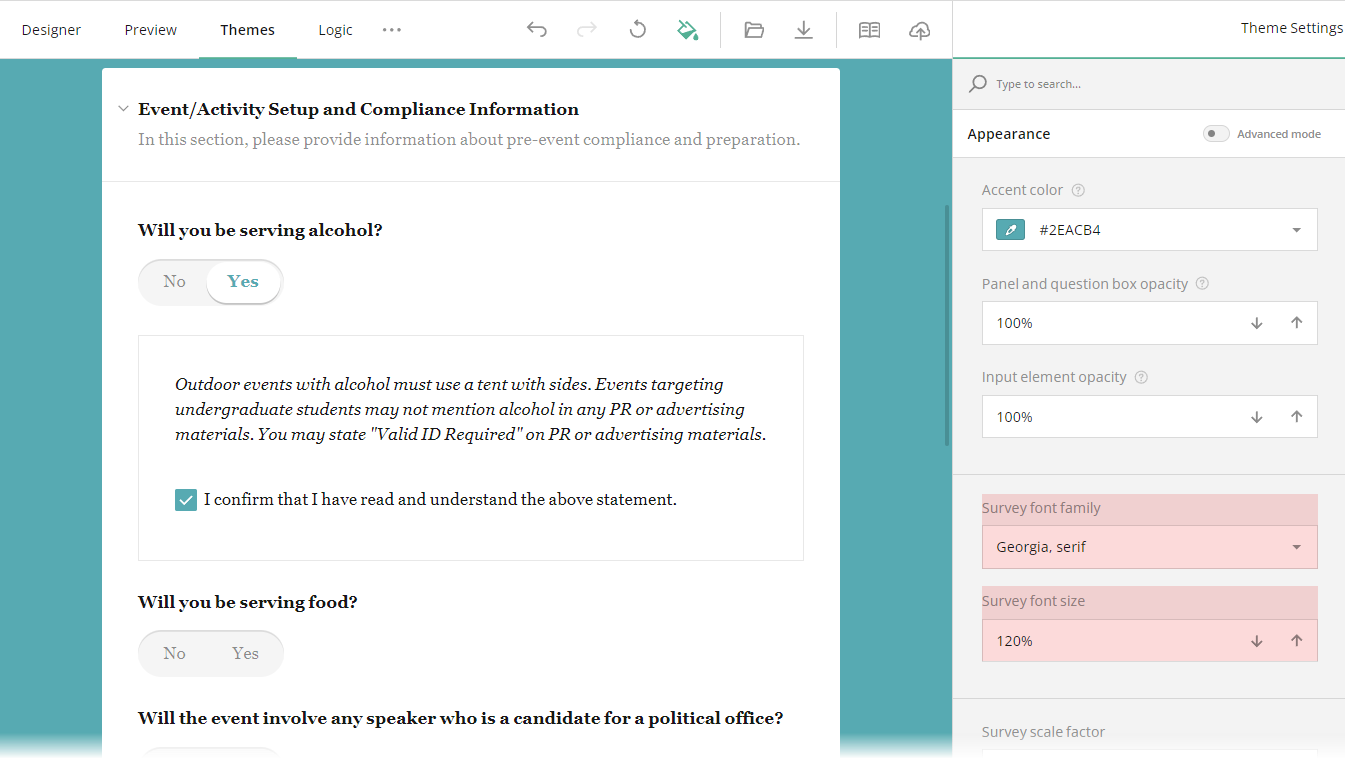
- Locate the Survey font family setting.
- Expand the drop-down menu and select a font from the available options. If your desired font isn't listed, you can request your development team to add it to your Survey Creator by following the instructions from the Add Custom Fonts demo.
A specified Survey font family also applies to the survey title. If the title should have a different font, change the Survey title font property in the header settings.
To adjust the font size, use the Survey font size property. You can enter the desired size in percentage or use the spinner for easy adjustments.
Survey Scale Factor
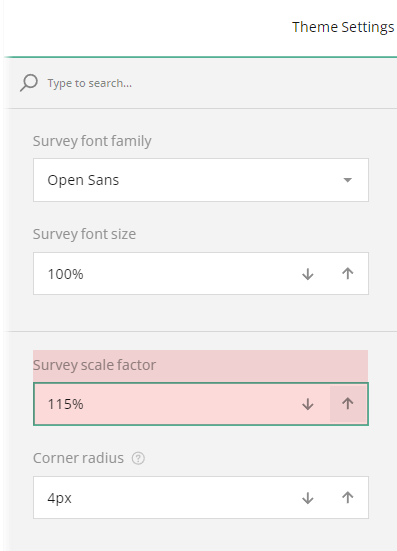
The Survey scale factor setting allows you to increase or decrease the size of survey elements. Adjust the scale factor using the spinner to achieve the desired dimensions.
Corner Radius
The Corner radius property controls the roundness of all rectangular elements (panels, question boxes, input fields).
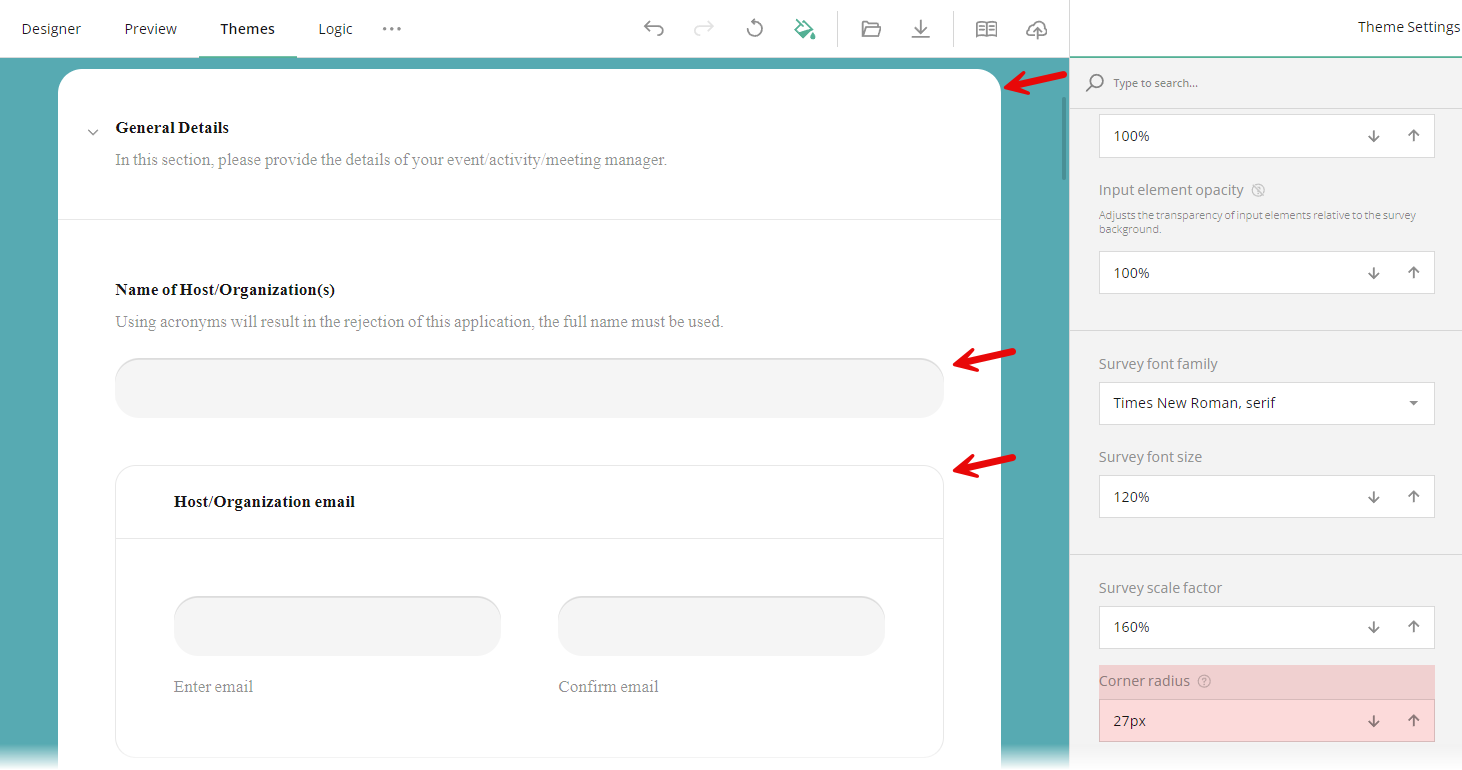
To set corner radii for specific elements, enable the Advanced mode toggle in the Appearance category and use individual corner radius settings.
Was this article helpful?
That’s Great!
Thank you for your feedback
Sorry! We couldn't be helpful
Thank you for your feedback
Feedback sent
We appreciate your effort and will try to fix the article