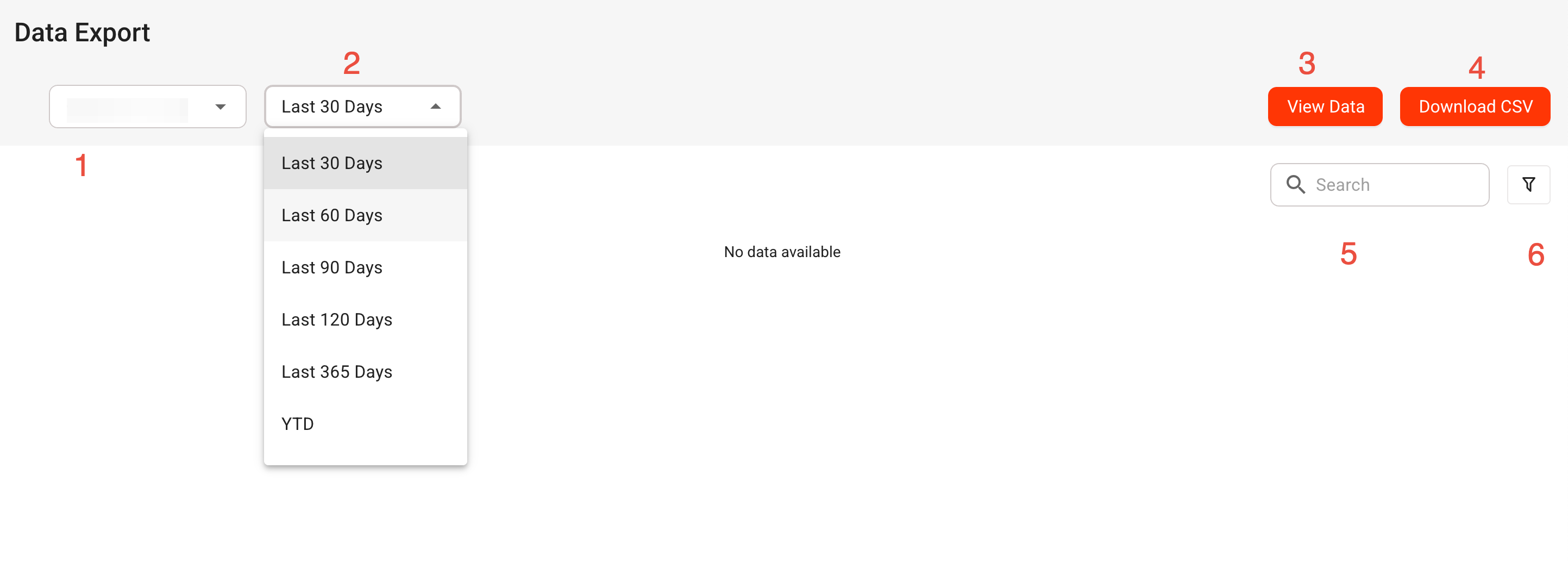
Select a campaign from the dropdown (1).
Select a time period from the dropdown (2).
Press View Data (3) when ready.
Downloading/Exporting a CSV
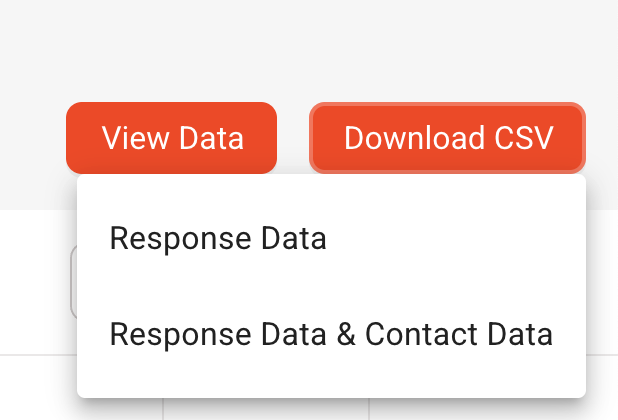
When you press Download CSV (4) you have two options.
- Response Data - this is survey response data only
- Response Data and Contact Data - this is survey response data plus any CCV data stored with the survey plus any contact information associated with the survey responses.
The exported data will be in CSV format.
Searching the response data
The search box (5) allows you to search any open ended (long comment) text .
Apply Filters
The Filter button is located at (6).
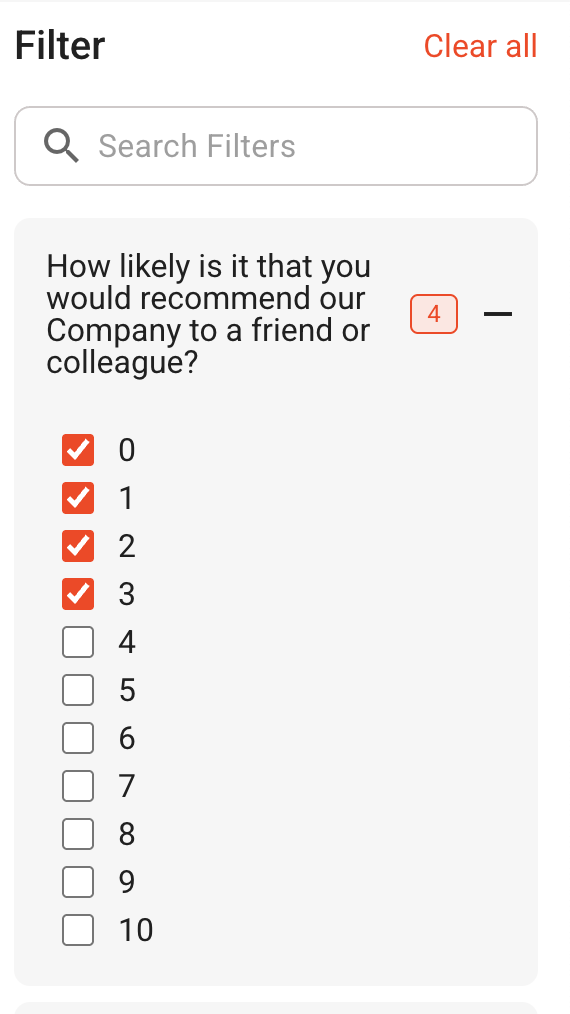
Clicking this opens the filter settings and you can set a filter or multiple filters at one time.
Press 'Apply Filter' at the bottom of the list and the table will update accordingly.
Was this article helpful?
That’s Great!
Thank you for your feedback
Sorry! We couldn't be helpful
Thank you for your feedback
Feedback sent
We appreciate your effort and will try to fix the article