What is My Alerts?
- Tracks key metrics - Monitor NPS, CSAT, ratings, and averages automatically
- Detects threshold breaches - Get alerted when metrics exceed or fall below targets
- Monitors consecutive trends - Identifies sustained problems or improvements
- Sends notifications - Receive email alerts when thresholds are breached
- Provides visibility - Dashboard view of all alerts and their current status
Understanding Alert Status
Green (Good)
- Metric is within acceptable range
- No action needed
- Everything is performing as expected
- Icon: ✓
Amber (Warning)
- Metric is approaching threshold
- Early warning signal
- Consider investigating but not urgent
- Icon: ⚠
Red (Breach)
- Metric has crossed the threshold
- Requires immediate attention
- Alert threshold has been exceeded
- Icon: ✕
Getting Started
Viewing the Alerts Dashboard
- Navigate to the Insights section
- Click on "My Alerts" or "Alert Monitoring"
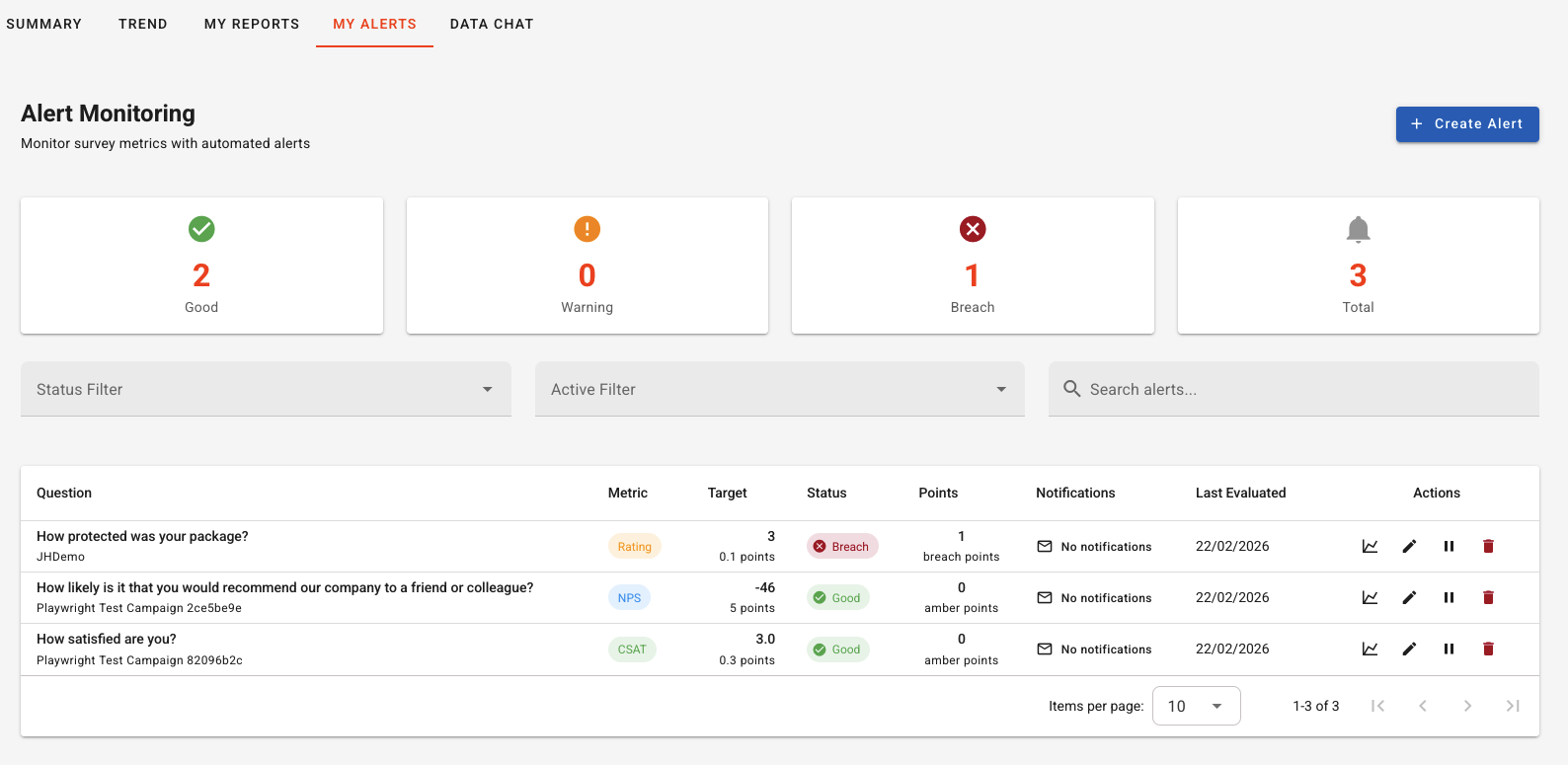
- You'll see the main dashboard with:
- Stats Cards at the top showing counts
- Filters to narrow down alerts
- Alerts Table with all configured alerts
Understanding the Stats Cards
Creating a New Alert
Step 1: Open Create Dialog
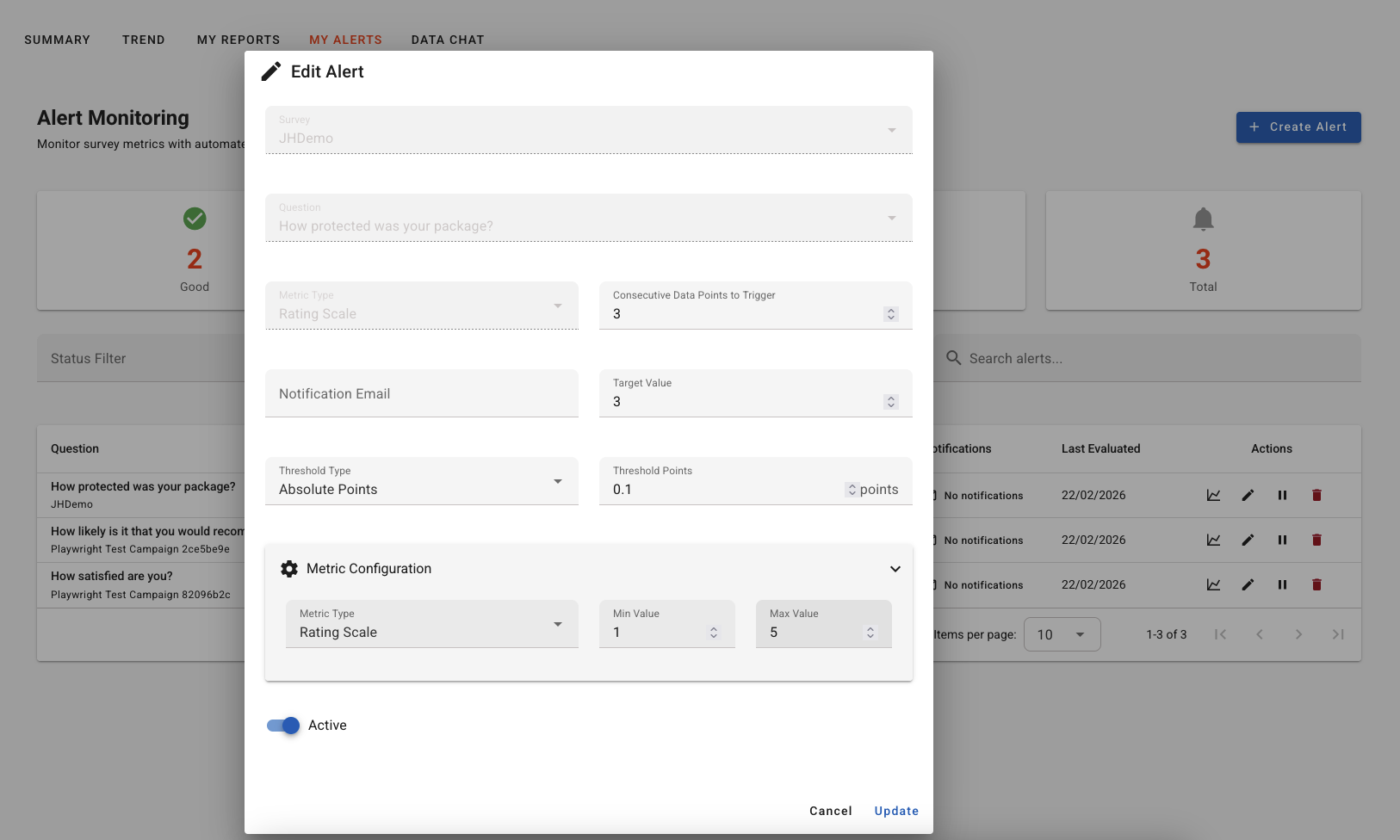
Step 2: Configure Alert Settings
- Choose which survey/campaign to monitor
- Only campaigns with responses can be monitored
- Select the specific question you want to track
- Must be a question with numeric data (ratings, scores)
- NPS (Net Promoter Score): For NPS questions
- Calculated as % Promoters (9-10) minus % Detractors (0-6)
- Range: -100 to +100
- Example: Alert when NPS drops below 50
- CSAT (Customer Satisfaction): Satisfaction percentage
- Typically tracks % of positive responses (4-5 stars)
- Range: 0% to 100%
- Example: Alert when satisfaction drops below 80%
- Rating: Track average rating values
- Average of all numeric ratings
- Range depends on your rating scale
- Example: Alert when average rating falls below 4.0
- Average: General average calculation
- For any numeric question
- Useful for custom metrics
- Set your target threshold
- This is the value that triggers alerts
- Example: Target = 4.0 for a 5-star rating
- Alert when metric goes BELOW target (for metrics where lower is bad)
- Set a warning level before breach
- Example: Warning at 4.2, Breach at 4.0
- Gives you early warning to take action
- Number of consecutive evaluations before triggering
- Prevents false alarms from temporary fluctuations
- Example: Alert only after 3 consecutive breaches
- Enter email address(es) to receive alerts
- Multiple emails can be separated by commas
- Leave blank if you only want dashboard monitoring
Step 3: Save the Alert
Understanding the Alerts Table
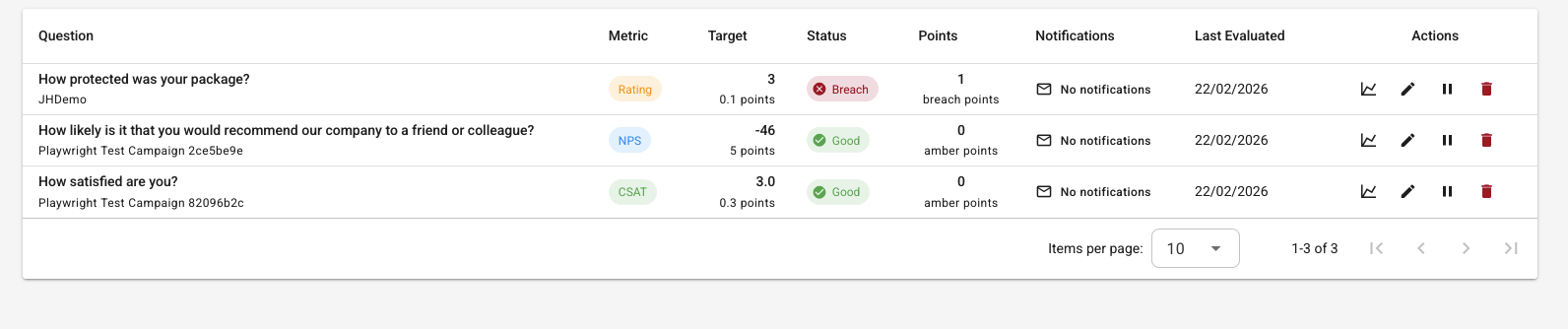
Question Column
- Top line: Question title/text
- Bottom line: Survey/campaign name
- Shows what's being monitored
Metric Column
- Colored chip showing metric type
- Blue: NPS
- Green: CSAT
- Orange: Rating
- Purple: Average
Target Column
- Top line: Target threshold value
- Bottom line: Threshold type and warning level
- Example: "4.0 | Below threshold with 4.2 warning"
Status Column
- Current alert status (Green/Amber/Red)
- Colored chip with icon
- Updates automatically as metrics change
Points Column
- Shows consecutive breach or warning points
- Helps understand if it's a sustained issue
- Example: "3 breach points" means 3 consecutive breaches
Notifications Column
- Email icon (filled if configured, outlined if not)
- Shows configured email address
- "No notifications" if email not set up
Last Evaluated Column
- Date and time of last check
- Shows how recent the status is
- "Never" if alert hasn't run yet
Actions Column
- Chart Icon: View metrics history and trends
- Pencil Icon: Edit alert configuration
- Play/Pause Icon: Activate or pause the alert
- Delete Icon: Remove the alert permanently
Filtering and Searching Alerts
Status Filter
- Filter by current status
- Options: Good, Warning, Breach
- See only alerts in a specific state
- Example: Show only "Breach" alerts that need attention
Active Filter
- Show active or inactive alerts
- Options: Active, Inactive
- Find paused alerts or only active ones
Search Box
- Search by survey name or question text
- Real-time filtering as you type
- Searches across campaign and question names
Managing Alerts
Viewing Metrics History
- See metric trends over time
- View historical values
- Understand when breaches occurred
- Analyze patterns and trends
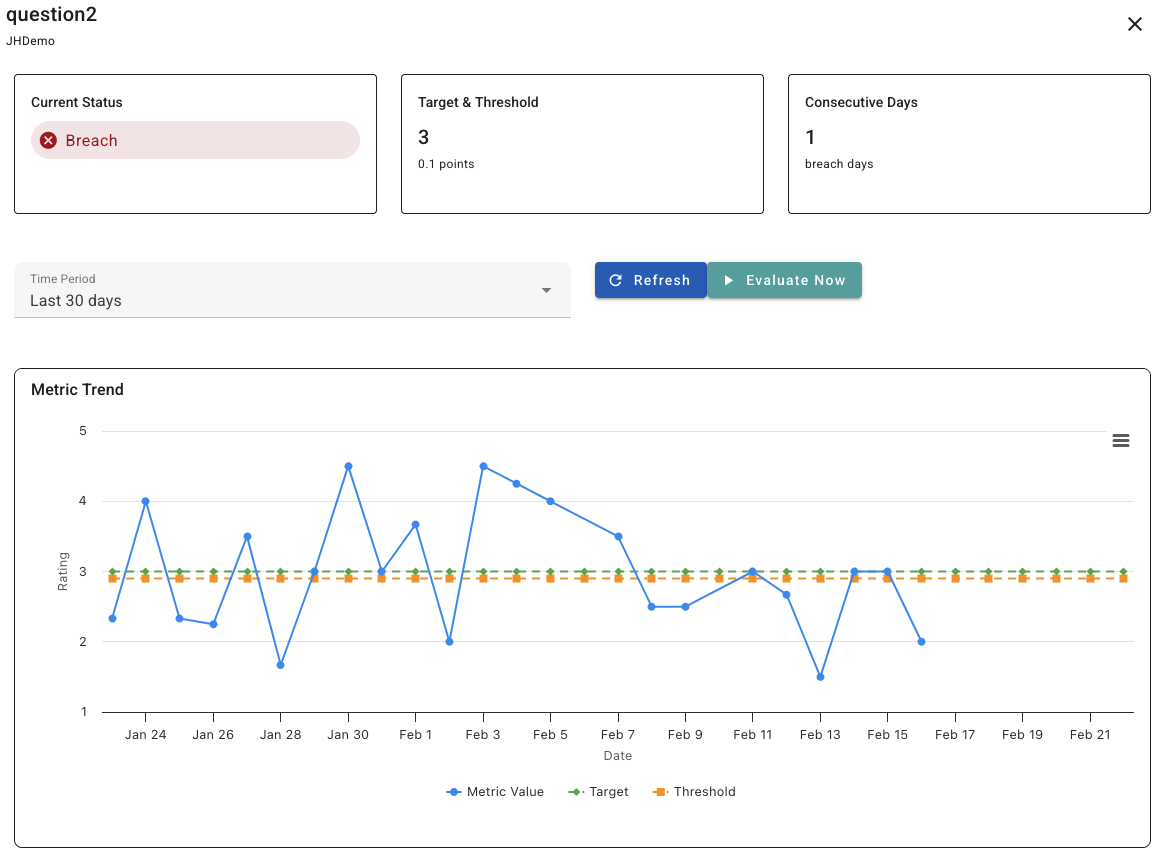
- Line chart of metric over time
- Threshold lines (target and warning)
- Color-coded zones (green/amber/red)
- Data points for each evaluation
- Breach events highlighted
Editing an Alert
- Alert configuration dialog opens
- Current settings are pre-filled
- Modify any settings (threshold, email, consecutive points)
- Click "Save" to update
- Alert immediately uses new settings
- Target threshold values
- Warning levels
- Email notification addresses
- Consecutive points requirement
- Note: Cannot change campaign or question (create new alert instead)
Pausing/Activating Alerts
- Temporarily stop monitoring
- No evaluations or emails sent
- Alert remains configured
- Status shows as "Inactive"
- Use when: Temporarily not relevant, during maintenance, etc.
- Resume monitoring
- Evaluations and emails resume
- Status shows as "Active"
- Picks up where it left off
Deleting Alerts
- Confirmation dialog appears
- Review alert you're deleting
- Click "Delete" to confirm or "Cancel" to keep
- Warning: This action cannot be undone
- Alert and all history are permanently removed
- Alert no longer needed
- Campaign has ended
- Question removed from survey
- Duplicate alert created by mistake
Understanding Alert Evaluation
- Alerts run on a scheduled basis (typically daily or hourly)
- Check "Last Evaluated" column for timing
- Automatic evaluation - no manual checking needed
- Recent responses (usually rolling time window)
- Calculates current metric value (NPS, CSAT, rating, average)
- Compares to your configured thresholds
- Tracks consecutive points
- Prevents false alarms from one-time fluctuations
- Requires sustained breach before alerting
- Example: Set to 3 means alert fires after 3 consecutive breaches
- Resets if metric returns to normal
Email Notifications
- Email to configured address(es)
- Subject line with alert status
- Details about the breach
- Current metric value
- Link to view full metrics
- Sent when alert first moves to Red status
- May include re-notification settings (check system settings)
- Not sent for Amber (warning) status by default
- Edit alert to add/change email addresses
- Remove email to stop notifications (dashboard only)
- Multiple recipients: separate emails with commas
Best Practices
Setting Effective Thresholds
- Review historical data first
- Understand typical metric ranges
- Set realistic thresholds
- Adjust over time based on performance
- Set Amber threshold slightly before breach level
- Gives you time to investigate and act
- Example: Warning at 4.2, Breach at 4.0
- Don't set thresholds too close to normal variation
- Use consecutive points to filter noise
- Start with 2-3 consecutive points minimum
Organizing Your Alerts
- Question titles should be descriptive
- Makes searching easier
- Helps team understand what's monitored
- Critical metrics: More sensitive thresholds, immediate email
- Important metrics: Moderate thresholds, email to team
- Monitoring metrics: Looser thresholds, dashboard only
- Check dashboard weekly
- Review all breach alerts immediately
- Investigate warning alerts
- Update thresholds as targets change
Choosing Consecutive Points
- Metric is very stable
- Single breach is significant
- Need immediate alerting
- Low data volume
- Normal variation exists (typical)
- Want to filter temporary spikes
- Medium data volume
- Most common setting
- High normal variation
- Want to detect sustained trends only
- High data volume
- Looking for long-term shifts
Email Notification Strategy
- Add multiple stakeholders
- Include managers and team leads
- Ensure 24/7 coverage if needed
- Use team email address
- Include those who can act on issues
- Don't over-notify - alert fatigue is real
- Your email only
- Dashboards you're responsible for
- Experimental or test alerts
Troubleshooting
- Alert was just created - wait for first scheduled run
- System scheduling may be delayed
- Check with administrator if persistent
- Verify threshold direction (above vs below)
- Check consecutive points requirement
- Review actual metric values in metrics dialog
- Ensure alert is Active (not paused)
- Verify email address is correct
- Check spam/junk folders
- Ensure alert status is Red (not Amber)
- Confirm consecutive points threshold met
- Check question type and metric type match
- Verify sufficient responses for calculation
- Review time window used for calculation
- Check for data quality issues
- Increase consecutive points requirement
- Adjust threshold values
- Add wider warning margin
- Review normal variation in data
- May indicate system issue
- Campaign might be paused
- Check with administrator
Common Alert Configurations
Example 1: NPS Monitoring
- Metric Type: NPS
- Target: 50
- Threshold: Below
- Warning: 45
- Consecutive Points: 2
- Purpose: Alert when NPS drops below 45 for 2 consecutive periods
Example 2: High CSAT Standard
- Metric Type: CSAT
- Target: 85%
- Threshold: Below
- Warning: 83%
- Consecutive Points: 3
- Purpose: Maintain high satisfaction standard
Example 3: Rating Quality Check
- Metric Type: Rating
- Target: 4.0
- Threshold: Below
- Warning: 3.8
- Consecutive Points: 2
- Purpose: Ensure ratings stay above 4.0 on 5-point scale
Example 4: Early Warning System
- Metric Type: Average
- Target: 3.5
- Threshold: Below
- Warning: 3.4
- Consecutive Points: 1
- Purpose: Immediate notification of any concerning drops
Need More Help?
- The alert configuration (screenshot if possible)
- Campaign and question being monitored
- Expected vs actual behavior
- "Last Evaluated" date from the alert
- Whether email notifications are working
- Any error messages
Was this article helpful?
That’s Great!
Thank you for your feedback
Sorry! We couldn't be helpful
Thank you for your feedback
Feedback sent
We appreciate your effort and will try to fix the article