Getting Started
- Left Sidebar: Where you'll select campaigns and start new conversations
- Main Chat Area: Where your conversations with the AI will appear
Starting a New Data Chat
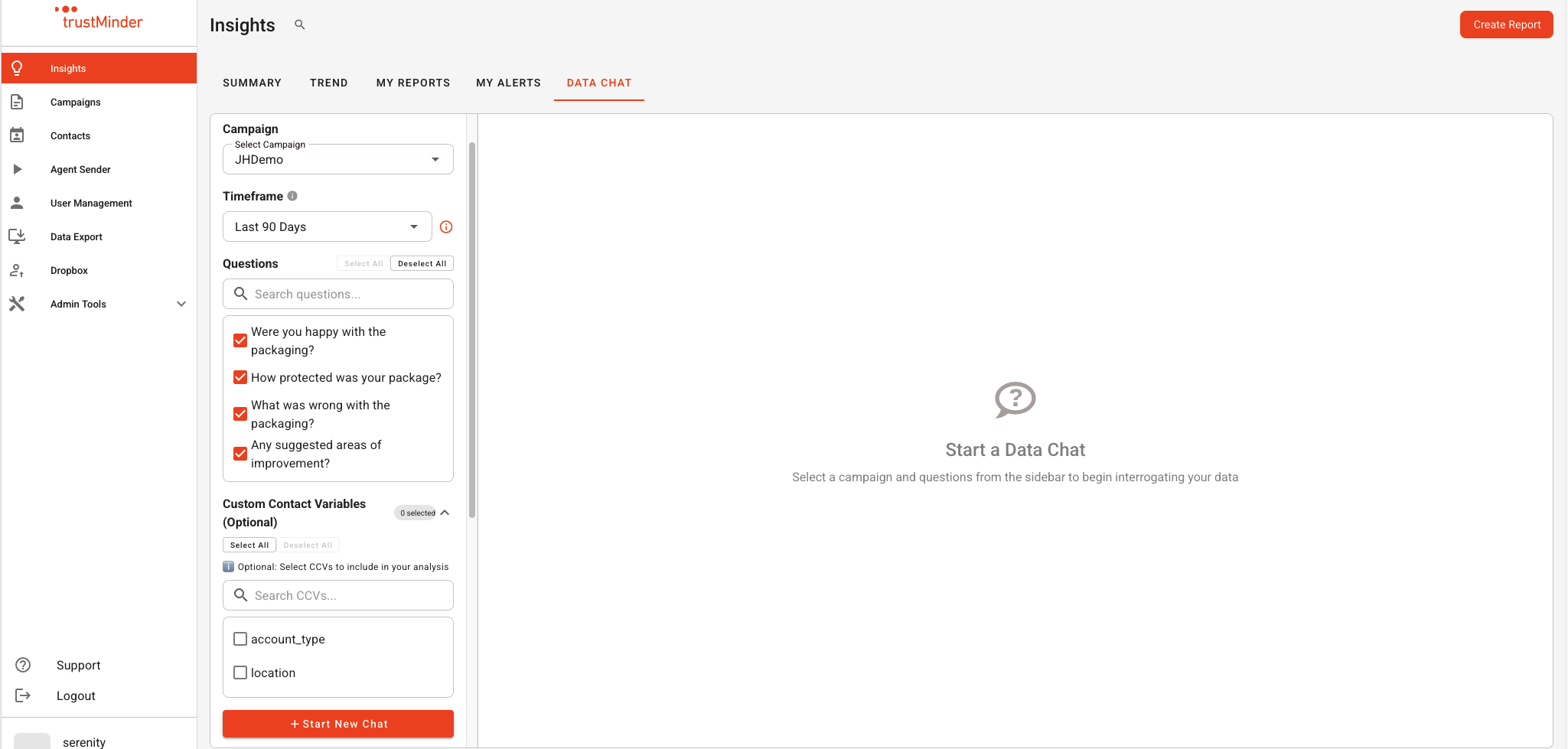
Step 1: Select a Campaign
- In the left sidebar, click on the campaign dropdown
- Choose the campaign you want to analyze from the list
Step 2: Configure Your Chat Session
- Set a start and end date to focus on specific time periods
- Leave blank to analyze all available data but be aware this will use a large amount of AI tokens
- Choose one or more questions from your campaign that you want to analyze
- You must select at least one question to start a chat
- Minder AI will be able to analyze responses to these selected questions
- You can select multiple questions to analyze relationships between them
- CCVs (Campaign Custom Variables) are additional data points associated with your campaign
- Select any CCVs you want to include in your analysis
- These are optional but can provide valuable context
- Set a maximum number of responses to analyze if you want to limit the dataset size
Step 3: Start the Chat
- Once you've configured your selections, click the Start Chat button
- The chat interface will open in the main area
Using the Chat Interface
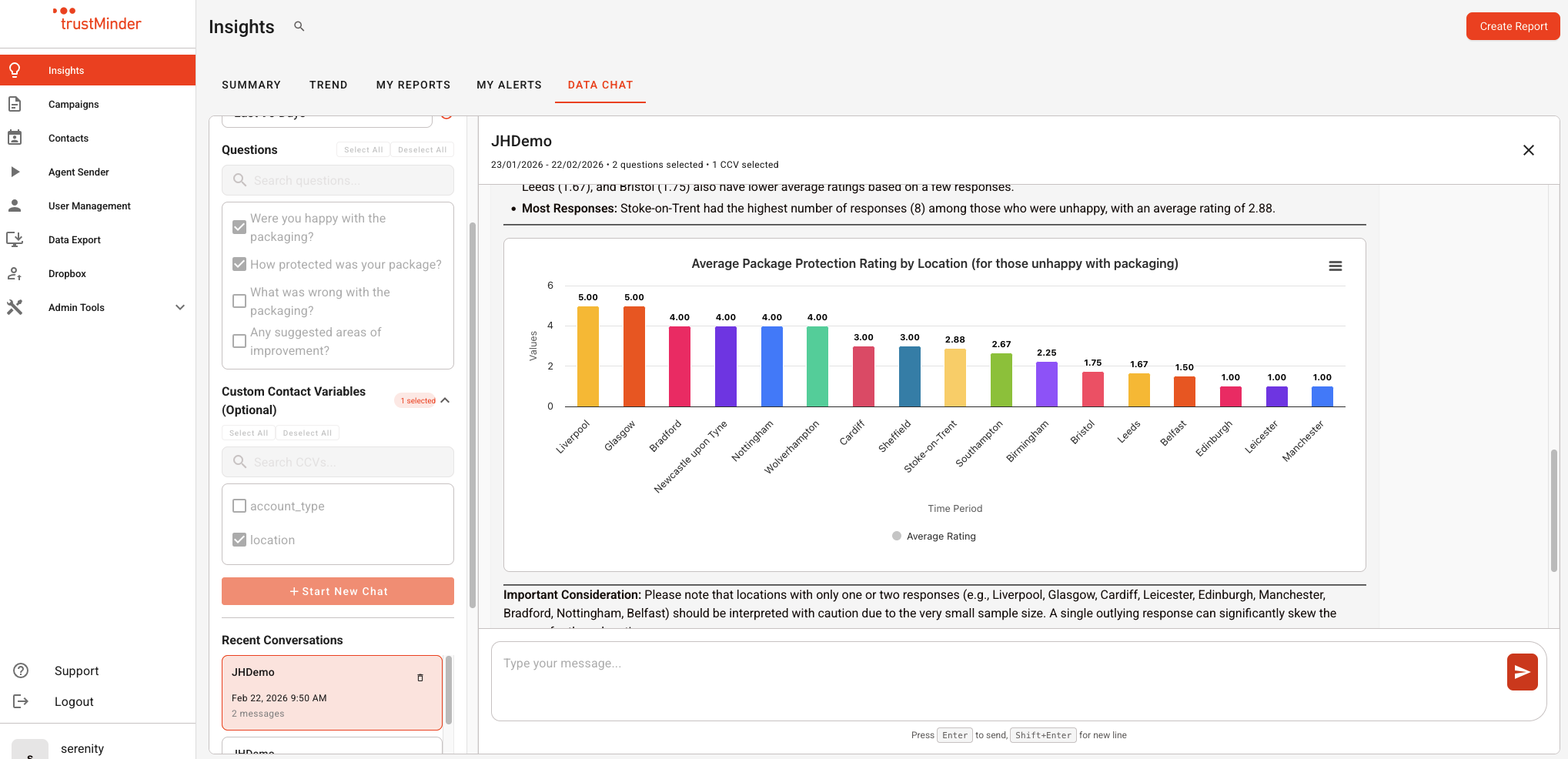
- Campaign name
- Date range (if specified)
- Number of questions selected
- Number of CCVs selected
- Your messages will appear on the right
- Minder AI responses will appear on the left
- The chat automatically scrolls to show the latest messages
- Type your questions in natural language at the bottom
- Press Enter or click Send to submit your question
Example Questions to Ask
- "What are the most common responses to question 1?"
- "Show me trends over time"
- "What percentage of respondents chose option A?"
- "Are there any correlations between question responses?"
- "What's the average rating?"
- "Can you identify any patterns in the data?"
- "Show me responses from the last 30 days"
Managing Conversations
- All your previous conversations are listed in the left sidebar
- Click on any conversation to reopen it and continue where you left off
- Recent conversations appear at the top
- Hover over a conversation in the sidebar
- Click the delete icon to remove it
- This action cannot be undone
- Click the X button in the top-right corner of the chat header
- This will close the current conversation and return you to the empty state
- Your conversation is automatically saved and can be reopened later
Understanding Minder AI Responses
- When you send a message, you may see a "processing" indicator
- The AI analyzes your data in the background
- Responses may take a few moments depending on the complexity of your question and dataset size
- Text summaries and insights
- Statistical analysis
- Trend identification
- Data patterns and correlations
- Comparative analysis
Tips for Best Results
- Be Specific: Ask clear, specific questions about your data
- Start Broad: Begin with general questions, then drill down into specifics
- Select Relevant Questions: Only include questions you want to analyze to keep responses focused
- Use CCVs: Include relevant CCVs to get deeper insights based on custom variables
- Follow Up: Ask follow-up questions to explore interesting findings
- Date Ranges: Use date filters to analyze trends over specific periods
Troubleshooting
- Make sure you've selected at least one question
- Verify you've chosen a campaign
- Do you have enough AI Tokens?
- Large datasets may take longer to process
- Consider using date ranges or response limits for faster results
- Conversations are listed in the sidebar
- Use the search function if you have many conversations
- Check that you haven't accidentally deleted the conversation
Need More Help?
- The campaign you're analyzing
- The questions you selected
- Any error messages you're seeing
- What you were trying to accomplish
Was this article helpful?
That’s Great!
Thank you for your feedback
Sorry! We couldn't be helpful
Thank you for your feedback
Feedback sent
We appreciate your effort and will try to fix the article